Mobile Tech Trends

  • Home
  • Tech - Gadgets
    • Mobile
    • Computer Accessories
  • Web Services
    • PHP
    • Magento
    • Wordpress
    • Outsource Web Development
  • About Me

Friday, December 12, 2014

How to set up the Xperia Z3 Tablet Compact for the first time

 8:32:00 PM     Android, sony xperia Z3, tablet     No comments   

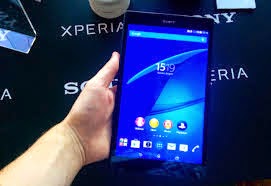
Sony's range of Xperia devices are some of the best around, placing highly on both our Best Android phones and best Android tablets lists. The latter includes the fantastic Xperia Z3 Tablet Compact, an ultra-slim waterproof tablet with great hardware. If you're a new owner of one of these little beauties, read on to find out how to set up the Xperia Z3 Tablet Compact for the first time.


Charge your device and enter the SIM card (LTE version only)


First things first, if you own the LTE version of the Xperia Z3 Compact, and a nano SIM card, you will want to install it now before you even switch your device on. You will also want to fully charge your device before switching it on for the first time.

Select language

Hold down the power button of the Xperia Z3 Tablet Compact and it will start. At the first menu you will be asked to select a language. Tap your preferred language and on the next screen you will be welcomed by Sony, and asked to read the "important information", before continuing (people rarely read this). You must tick the box, and tap the right arrow to continue the setup.


Set up your Wi-Fi


If you have a Wi-Fi network (we hope that you do) here is when you should connect to it. Tap search for networks, then tap the one which you wish to join and enter your password. At the next screen you will be asked if you have a Google account already. If you do simply tap yes, and if you don't tap no and then you should create one. If you aren't sure, it likely means that you haven't.


Add payment info


Next you may be asked to enter your credit or debit card details so that you can purchase apps from the Play Store. You can add or remove this information at any point, so it's not essential that you do it here. If you aren't comfortable with it, skip it, and you can decide another time if you want to enter it. (Note if you already have a Google Account, this screen may not appear.)


Set up your other accounts


Now you will be asked if you would like to "Join the world of Sony". This is, of course, a Sony exclusive service which gives you access to music, movies and games, and helps you locate your tablet if you lose it, among other things. This can also be skipped for now and registered for later. The next page will offer you the opportunity to sync other popular accounts (like Facebook and Twitter) so that they are always kept up to date on the device. If you would like to be notified of the happenings on your other social networks, you can set this to "on". It can always be configured later in your account settings, so don't worry too much about it here.


Finish and update


Tap finish, read the data disclaimer (if you wish) and you're all done! As with any new device, the first thing you may wish to do is check for software updates. Drag with two fingers down from the top of the screen and tap Settings. Next, scroll down the settings menu to About tablet. From there, tap Software update and see if your device can be updated! Or plug it into a desktop computer via USB and update via there.


Read More
  • Share This:  
  •  Facebook
  •  Twitter
  •  Google+
  •  Stumble
  •  Digg

Monday, December 8, 2014

How to install the Google Play Store manually

 1:02:00 AM     Android, google play store     No comments   

Lots of people pick up tablets and smartphones that don't have the Google Play Store pre-installed on them. Perhaps you've just granted yourself root access and accidentally deleted the Play Store from your new Nexus 6, or flashed a custom ROM and don't want all of Google's apps. Fortunately it's super easy to get Google's app market place running on your device, so you don't have to worry about missing out on all the Play Store has to offer. Here is our guide on how to install the Play Store manually.


How to install Google Play Store APK

The simplest method is one that should already be quite familiar to you if you're an avid follower just install the Play Store APK manually. An APK is the Android version of a exe program on your computer. Instead of downloading an app from the Play Store, you simply load it yourself without the Play Store's help. This is of course very useful when it is the Play Store itself you want to install!
You can always pick up the latest version of the Google Play Store APK on XDA Developers forum or at Android Police, who always do great teardowns of the new features when new updates appear.


Direct sideload from your device

Now, there's two ways to get the APK installed on your device: directly or from your computer. We'll do the easy option first. Just follow one of the links above or do a Google search for the latest Google Play Store version and download the APK file to your Android. Next, you need to have ''Unknown Sources'' enabled in your device's security settings. Don't be alarmed, unknown sources are simply locations outside of the Play Store. Once you've completed the process you can disable ''Unknown Sources'' again just to be safe.
  • What to do when Google Play isn't working


So, depending on which device you have, you want to go to your Settings and find the Security section. From here scroll down until you find the ''Unknown Sources'' check box and make sure it is enabled/checked off. Now, just go to your downloads folder or click the completed download notification in the notifications drop down shade, and launch the APK. You'll be prompted to read permissions and accept then the app will install. Google Play will automatically install Google Services Framework, which is what Google uses to keep the Play Store communicating with your apps, so it knows when to update them. And that's it,create a Google account or log in and you're golden. The same sideloading process works for all APKs.
  • How to solve the main Google Play Store errors


Read More......


Read More
  • Share This:  
  •  Facebook
  •  Twitter
  •  Google+
  •  Stumble
  •  Digg

How to optimize your Android phone's internal storage

 12:47:00 AM     Android     1 comment   

Trying to find space on your phone can be frustrating. Manually searching for the biggest culprits can be arduous and ineffective. Enter: MemoryMap. The app helps optimize space on your Android phone by showing you precisely what is eating up your GB.


Let’s be clear: MemoryMap isn’t a cache cleaner. It gives you a visual representation of where your files are stored and how much space they’re taking up. The more space they take up on the screen, the more space they’re taking up on your hard drive.


Use these five tips to boost your Android's performance


15pxer files don’t escape the gaze of MemoryMap. You can zoom in to see details from even the 15pxest files. You can even color-code certain categories. For example, if you’re worried your music collection is getting out of hand, MemoryMap highlights the files in one neat package.


Now that MemoryMap has helped you find your evasive files, it’s up to you to delete them. MemoryMap currently runs on Android 2.3 and up. The free version does the trick nicely, but if you’re adverse to advertisements, try the paid version. Read More......


Read More
  • Share This:  
  •  Facebook
  •  Twitter
  •  Google+
  •  Stumble
  •  Digg

Thursday, December 4, 2014

Why iPhone App Development is Flourishing Field Today

 12:53:00 AM     application, iphone, iPhone App Developers India     No comments   


iPhone App Development is most growing field of today & there is no doubt about it. World’s leading Smartphone Company launched exclusive device alternatively and people likes to use iPhone & other iOS devices. It’s the main reason behind to increase the iOS app development.
Let’s discuss here why iPhone app development is successful field?
iPhone is supports wide range of smart applications so almost every people preferred to use iPhone. iPhone development is possible by Objective C language & developers already developed various user friendly apps . All the apps developed by iPhone developers are helps to sending & receiving Data through CDMA, Bluetooth, Wi-Fi etc… Today people like to connect with all over the world & to full fill this requirement developers has developed many social networking apps. Users want to complete their task through the iPhone and as per their requirement also developed other app like GPS, education, sports, navigation.
iPhone supported 3G Technology which can helps to communicate with anyone and anywhere around the world .This quick moving technology is leading to quick communication and global reach. Now your business is become very easy because you can communicate with your customer from anywhere through various business applications.
There is millions of iOS application available on App store and downloaded by thousands of people regularly & always wants to apps with advance features which helps them to accomplish their task very easily. So iPhone app development is increasing day by day choose this field by many developers as a bright career.
It’s a great opportunity to jump in running flow, start your app development business by hire developer, start to developer user friendly application and generate best revenue. To start your iPhone app development business hire talented developers form Silicon Valley the leading IT Company. Hire developer monthly, yearly & hourly basis as per your requirement with affordable rates. 
Read More
  • Share This:  
  •  Facebook
  •  Twitter
  •  Google+
  •  Stumble
  •  Digg

Top 5 Best Smart Watch of 2014 with Advance Features

 12:46:00 AM     lg, samsung, sony, watch     No comments   


Today almost every people using smart phone, but sometimes it’s become untimely to taking out phone out of pockets or purse. Sometimes you are missing some important calls & messages because you could not here. Now Smart watch helps to reduce this problem, you will get all notification on your wearable watch.
Here you will get list of top 5 smart watches available today, you can select any one for you.
Top 5 Smart Watch
#1. Samsung Galaxy Gear :
Samsung Galaxy Gear is such a fantastic gadget. Almost everything is possible through this amazing device like Email notification, text message, app notification, photography etc. You have to connect Gear & smartphone via blue tooth with each other so you will get buzz if you left your phone anywhere. Its only working with Samsung devices.
Price: $299.
 #2. Cookoo
It is best smart watch for those people who like to wear designer accessories. This designer watch has so many great features; it is connected for both iOS & Android. After connect your watch with Smart phone you will get all notifications of incoming calls, text messages etc. It allows to access camera remotely.
Price: $132
#3.  LG Lifeband Touch
LG has mixed the Smart watch and fitness band to gather. It is compatible with both Android & iOS devices. Through this Life Band you can send recorded fitness data in all G’s Fitness application. Battery life of this device is 5 days and has a splash proof design. It is not just developed for fitness purpose but you can use it regularly to get miss calls alert, text message alert & Email alert. You just have to connect your smart phone and Life band via Bluetooth.
Price $110
#4.  Sony Smartwatch 2
It is compatible with Android version 4.0 and above. Most amazing feature of this gadget is , it is dust proof and it will last up to 30 minutes in water. It has a 1.6-inch LCD display and it will works for 3 days on single charge. It’s affordable for everyone.
Price $149
#5.  Pebble Steel Smart Watch
It is working for both Android and iOS devices and has a conventional LCD display, its battery lasts for whole week. New design is available in stainless or Black Matte. It has a LED which indicates you about charging status. Get notifications of Email, incoming call, text messages like other smart watch.
Price : $249
Thus you will know about top 5 latest Smart Watch here in this blog. You can select anyone from listed above and get relieved from taking out phone frequently and it is more conventional when you driving, at office when you are busy in your work and no time to check your phone. Try this smart gadget and be smarter.

Read More
  • Share This:  
  •  Facebook
  •  Twitter
  •  Google+
  •  Stumble
  •  Digg

Wednesday, December 3, 2014

How to get Android 5.0 Lollipop on your PC

 1:31:00 AM     Android, Android 5.0 Lollipop, android lollipop     No comments   

If you’re an eager beaver and can’t wait to try out Android 5.0 Lollipop, but your Android phone still has a long way to go before it can actually get updated OTA, usually your last resort would be flashing a custom ROM. Well, today we’re here to give you an alternate solution. Here’s how to get Android Lollipop on your PC.


After completing this guide, you will be able to use an Android Lollipop emulator on your PC. This emulator simulates the functions and features of an Android device right on your computer, unlike other services, like Bluestack, that only let you run Android apps.

  • Android 5.0 Lollipop: find out everything you need to know about Android 5.0 here

Requirements

Android SDK : this contains the SDK Manager with which you will be able to download Android Lollipop and other necessary tools. 

How to install the Android 5.0 Lollipop on your computer

The procedure is divided into two phases, downloading the necessary files and creating the emulator.

Install the necessary material

  • Download the zip file for the Android SDK for your computer (32 or 64 bit).
  • Extract the zip file that you just downloaded with an archive manager (like 7-Zip). Choose an appropriate location for the extraction and remember where it has been saved (C: \ Program Files \ Android ").
  • Open the program SDK Manager and the android-sdk folder, and wait for it to finish loading.
  • If you find that items are already selected, deselect them. Under Tools select only Android SDK Platform-tools. Also select the entire section called Android 5.0 (API 21). Now click Install Packages, accept and confirm the installation. The process of downloading and installation will start now.


Create the Android Lollipop emulator
After installation, go to the android-sdk folder and open the AVD Manager program. Select the Create button, it will open a window where you can set the parameters of the emulator. Insert the following:


  • AVD Name: the name of the emulator, do not use spaces (example: EmulatoreLollipop)
  • Device: select a preset template among those present, I recommend the Nexus 5 or earlier.
  • Target : the version of Android to be installed (Android 5.0 - API Level 21)
  • CPU: select "ARM"
  • Skin : select "Skin with dynamic hardware controls"
  • RAM : I recommend you choose either 512 or 1024 (it will be "taken away" from that of the PC, so don’t overdo it or it will slow down the system)
  • Leave the other items with default values and press OK.

You will now find your new emulator in the list found on AVD Manager. Select it, press Start and then Launch to run it. The first startup may take several minutes, as it will install Android Lollipop. To select a size, go into the the Launch Options after Start, select ''Scale to display real size'' and set your prefered size.


Congratulations, you’ve now successfully installed your first PC emulator with Android Lollipop. Now you can immerse yourself into Material Design and comb through each new option brought by this fantastic update!


Read More
  • Share This:  
  •  Facebook
  •  Twitter
  •  Google+
  •  Stumble
  •  Digg

Monday, December 1, 2014

Android 5.0 Lollipop tips: 5 tricks everyone should know

 1:47:00 AM     Android, Android 5.0 Lollipop, android lollipop     No comments   

If you're lucky enough to have Android 5.0 Lollipop on your device right now, you're amongst the lucky few with Nexus, Motorola or LG devices. But the Android 5.0 Lollipop update is coming for everyone, so why not get up to speed on the best Android 5.0 Lollipop tips to give you a head start on what you need to know to get the most out of Lollipop and avoid some of the biggest Android 5.0 Lollipop fails...


Enable silent mode


This is easily one of the biggest frustrations with Android 5.0 Lollipop: the official death of silent mode. We've shared a couple of tricks to enable silent mode on Android 5.0 Lollipop but one of our awesome Mods and all-round geniuses, Mattia from AndroidPIT.it has come up with a cool silent mode widget that'll flip your device to silent and back again – the app is getting the final touches on it right now, but we'll share it with you as soon as it's uploaded to the Play Store. In the meantime, check out the article linked above for all the current options.


Lock screen security


Android 5.0 Lollipop comes with a variety of lock screen security options. From the classic pattern, PIN or password, to the more funky Lollipop options like Trusted Faces, trusted Devices or Trusted Places. Whatever lock screen method (or trusted bypass option) you choose, this should really be one of the very first thing's you do with any phone, any time. With the new Trusted options, having a complex pattern lock doesn't even have to be a pain as long as you're hanging out near home/work, have your smartwatch or Bluetooth headphones on or have your beautiful mug in view of your phone (which should always be attached to your body).


Chrome tabs


This isn't a huge problem, and maybe you like having your Chrome tabs dispersed throughout your recent apps stack, but for me it's as irritating a default setting as its possible to have. Fortunately, all you need to do to get your Chrome tabs back to their rightful place (you know, in Chrome) is to go to you Chrome settings and disable ''merge tabs and apps.'' Your Chrome tabs will now be accessible via the traditional button on the URL bar in the Chrome browser.


Priority interruptions


Priority interruptions are a key component of the Android 5.0 Lollipop feature set. Knowing that there are times and places when you don't want to be interrupted by anything except the most urgent notifications is a great addition to stock Android's functionality. It may take you a little while to set up exactly how you like it, but once you've got your priorities in order you can enjoy peace and quiet unless your mom's dog runs away or your girlfriend is texting you.


Dead Email app

For some odd reason, Google decided to keep the now useless Email app. When you launch it for the first time, you'll get a splash screen that tells you Gmail is now handling Email services and you can check the box fto launch Gmail instead. But why do that and have a hollow app sitting in your app drawer? Go to Settings > Apps > All tab and find Email and disable that useless waste of space. Your emails will still be handled by Gmail but you won't have the dead app icon cluttering up your precious app drawer.


Read More
  • Share This:  
  •  Facebook
  •  Twitter
  •  Google+
  •  Stumble
  •  Digg
Newer Posts Older Posts Home

Blog Archive

  • ▼  2016 (51)
    • ▼  July (1)
      • iPhone Development and Its Challenges
    • ►  June (5)
    • ►  May (9)
    • ►  April (10)
    • ►  March (10)
    • ►  February (8)
    • ►  January (8)
  • ►  2015 (59)
    • ►  December (3)
    • ►  November (7)
    • ►  October (5)
    • ►  September (5)
    • ►  August (6)
    • ►  July (7)
    • ►  June (3)
    • ►  May (5)
    • ►  April (2)
    • ►  March (7)
    • ►  February (3)
    • ►  January (6)
  • ►  2014 (49)
    • ►  December (11)
    • ►  November (7)
    • ►  October (3)
    • ►  September (18)
    • ►  August (10)

Popular Posts

  • iPhone Development and Its Challenges
    In this day and age, a mobile phone is past an apparatus of correspondence with family and companions. It is utilized as a gadget, ...
  • Outsource iphone web app development Business : The Lead Now!!
    Web! Web! Web! is the thing that we are all encompassed by today. Web is an endless loop in which we are all bound. Need to look a spot, n...
  • Google Play Store not working? Here's what you can do
    1. Clear the Google Play Store cache As a rule, you can get the Play Store going again by simply exhausting the reserve. The res...
Mobile Tech Trends. Powered by Blogger.

Mobile Application Development

  • Android App Developers India
  • iPhone App Developers India
  • PhoneGap Developers India

Outsource Web Development

  • PHP Developers India
  • Joomla Developers India
  • Wordpress Developers India
  • Magento Developers India
  • Outsource Web Development
  • Symfony Developers India

Popular Posts

  • iPhone Development and Its Challenges
    In this day and age, a mobile phone is past an apparatus of correspondence with family and companions. It is utilized as a gadget, ...
  • Outsource iphone web app development Business : The Lead Now!!
    Web! Web! Web! is the thing that we are all encompassed by today. Web is an endless loop in which we are all bound. Need to look a spot, n...

Copyright © Mobile Tech Trends | Powered by Update Always
Design by Mobile Tech Trends | Blogger Theme by NewBloggerTheme