Mobile Tech Trends

  • Home
  • Tech - Gadgets
    • Mobile
    • Computer Accessories
  • Web Services
    • PHP
    • Magento
    • Wordpress
    • Outsource Web Development
  • About Me
Showing posts with label sony xperia Z3. Show all posts

Monday, December 29, 2014

Sony Xperia Z3 tips: 10 that also work on the Xperia Z3 compact

 10:13:00 PM     Android, sony, sony xperia Z3     No comments   


If you have recently purchased a Sony Xperia Z3 or an XperiaZ3 Compact, chances are you are eager to get to know your device and find out all that it can do. Here is our list of Xperia Z3 tips (which of course could apply to the Z3 compact since its mostly the same) that will get you on your way.

1. Get the best sound with Sound Equalizer

Smartphones are starting to become more like mp3 players and iPods because not only can you stream music over the internet, but they offer so many more possibilities for tweaking your music. The Sony Xperia Z3 and Z3 Compact both offer a sound equalizer platform, which you can adjust manually, or choose a default setting such as jazz, soul or bass boost. You’ll find it under the Settings menu, then Sound settings, Audio settings, Sound effects and finally, Equaliser.


2. Change the default home screen

Every time you press the home button on either Xperia phone, it brings you back to a default home screen. You can, however, change the home screen and choose any of the ones that you have already created. To do this, simply long press on an empty space on the home screen, which will zoom out of all of the screen giving you a bit of an overview, as well as offering some settings options. Press the button on the upper left corner which looks like a house and select the screen you want to have as a default home screen. Now you won’t have to swipe to it anymore.

3. Ditch tapping to type and learn to swipe

Amaze your newbie friends with this next feature which is more than just a gimmick: instead of doing the old fashion letter by letter typing which can be quite tedious (especially after you have found it out about our tip), and also often requires both hands if your fingers can’t reach all the keys, swipe typing is where it’s at. Now you will just need to drag your finger across the screen from letter to letter, and even if you aren’t precise, the system will pick up what you are trying to type. Plus you can also revert back to letter by letter since both ways will be supported. The cool thing is that this is set as a default on your Xperia device.

4. Testing the hardware and software functions of your phone

Did you know that you can test the various software and hardware components of your device to see if anything is faulty? This is a good way of checking for any issues yourself so you know what needs to be fixed. It’s easy: open the phone app and dial * # * # 7378423 # * # * . This will bring you to a new menu where you select Service tests. Here you can do many things, like check to see if the LED flash is working, for example.


5. Customize icons from the notification bar

It may sound silly to want to remove elements from the notification bar, like the battery or Wi-Fi icon or even the time, but there are some who enjoy a clean slate. If you want to customize the notification bar, this is also a job that can be done in the settings menu. Head into Personalization, then Status bar icons. Once there, choose what you want to have appear and what gets the boot.

6. Double tap to activate screen

LG’s Knock On was the envy of all other companies, who soon started to copy the features, Sony included. Head into the the settings and then select Display. Choose ‘’Tap to activate’’ so that every time your screen is off, you just need to double tap on it to activate and unlock it. This way you no longer need to press on the power button.

7. Operate the screen with gloves


It’s getting chilly outdoors and chances are you don’t want to have to take off your gloves to operate your handy. With today’s technology in phones, you don’t have to. Most high end phones now include a glove mode where you can operate your phone while keeping your digits warm from the cold. Again, head into the settings, then select Display. Activate Glove mode. This will make the screen much more sensitive, so that softer touch is detected much easier.

8. Magnification gestures

If you have vision problems or need any additional assistance with your phone, manufacturers include accessibility features which will help you in many ways. One of the things that you can do is enable Gesture extension, by going to settings then accessibility. What this does is allow you to zoom into any screen. When you switch it on, it will prepare you for what to expect with a 15px explanation.

9. White Balance

You might feel the need to toy around with the white balance of your screen, and though the current default setting is usually optimal, it may not fit your preferences. Head into the settings, then find Display, and White Balance. Now you can tweak the bars and select the white balance that suits your fancy.

10. Microphone Sensitivity

Chances are you are not a hermit and using your phone in the middle of nowhere with no other living soul to be heard. Every day life is made up of ambient noise, which makes using the microphone on your smartphone a bit difficult. Thankfully, you can adjust the microphone sensitivity on the Xperia Z3 and Z3 compact, making it less sensitive, which makes it better for the person to hear you. If you are in a very quiet area, upping the sensitivity would help. To find this feature, go into the settings menu again, then find Sound, followed by Audio Settings, and finally Microphone sensitivity. Once there, just choose what suits your current situation.


Read More....


Read More
  • Share This:  
  •  Facebook
  •  Twitter
  •  Google+
  •  Stumble
  •  Digg

Friday, December 12, 2014

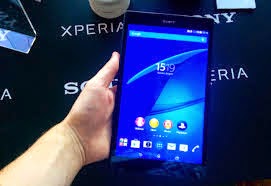
How to set up the Xperia Z3 Tablet Compact for the first time

 8:32:00 PM     Android, sony xperia Z3, tablet     No comments   

Sony's range of Xperia devices are some of the best around, placing highly on both our Best Android phones and best Android tablets lists. The latter includes the fantastic Xperia Z3 Tablet Compact, an ultra-slim waterproof tablet with great hardware. If you're a new owner of one of these little beauties, read on to find out how to set up the Xperia Z3 Tablet Compact for the first time.


Charge your device and enter the SIM card (LTE version only)


First things first, if you own the LTE version of the Xperia Z3 Compact, and a nano SIM card, you will want to install it now before you even switch your device on. You will also want to fully charge your device before switching it on for the first time.

Select language

Hold down the power button of the Xperia Z3 Tablet Compact and it will start. At the first menu you will be asked to select a language. Tap your preferred language and on the next screen you will be welcomed by Sony, and asked to read the "important information", before continuing (people rarely read this). You must tick the box, and tap the right arrow to continue the setup.


Set up your Wi-Fi


If you have a Wi-Fi network (we hope that you do) here is when you should connect to it. Tap search for networks, then tap the one which you wish to join and enter your password. At the next screen you will be asked if you have a Google account already. If you do simply tap yes, and if you don't tap no and then you should create one. If you aren't sure, it likely means that you haven't.


Add payment info


Next you may be asked to enter your credit or debit card details so that you can purchase apps from the Play Store. You can add or remove this information at any point, so it's not essential that you do it here. If you aren't comfortable with it, skip it, and you can decide another time if you want to enter it. (Note if you already have a Google Account, this screen may not appear.)


Set up your other accounts


Now you will be asked if you would like to "Join the world of Sony". This is, of course, a Sony exclusive service which gives you access to music, movies and games, and helps you locate your tablet if you lose it, among other things. This can also be skipped for now and registered for later. The next page will offer you the opportunity to sync other popular accounts (like Facebook and Twitter) so that they are always kept up to date on the device. If you would like to be notified of the happenings on your other social networks, you can set this to "on". It can always be configured later in your account settings, so don't worry too much about it here.


Finish and update


Tap finish, read the data disclaimer (if you wish) and you're all done! As with any new device, the first thing you may wish to do is check for software updates. Drag with two fingers down from the top of the screen and tap Settings. Next, scroll down the settings menu to About tablet. From there, tap Software update and see if your device can be updated! Or plug it into a desktop computer via USB and update via there.


Read More
  • Share This:  
  •  Facebook
  •  Twitter
  •  Google+
  •  Stumble
  •  Digg

Wednesday, November 19, 2014

iPad Mini 2 vs Sony Xperia Z3 Tablet Compact

 10:17:00 PM     Android, ipad mini 2, iphone, mobile phone, sony xperia Z3     No comments   


When it comes to mobile, Apple is always the manufacturer to beat. We can agree or disagree on the winner, but there is no denying the industry looks at Apple as a standard. And with an 8-inch iPad Mini 2 in the market, a whole crowd of tablets is bound to try and take down the Apple from its tree.
Among the most important 8-inch competitors we can find the Sony Xperia Z3 Tablet Compact, a device that is leading the batch of Android tablets of its size. Can it go up against the almighty iPad Mini 3? Let us tell you right now it can definitely hold its own.

iPad Mini 2 specs

  • iOS 8
  • 7.9-inch Retina Display (2048×1536)
  • A7 processor
  • 1 GB of RAM
  • 16/64 GB of internal storage
  • 5 MP rear-facing camera
  • 1.2 MP front-facing camera
  • 6471 mAh battery


Sony Xperia Z3 Tablet Compact specs

  • Android 4.4
  • 8-inch 1080p display
  • 2.5 GHz quad-core Qualcomm Snapdragon 801
  • 3 GB of RAM
  • 16 GB of internal storage
  • 8.1 MP rear-facing camera
  • 2.2 MP front-facing camera
  • 4500 mAh battery


Design, Form and Function – Sony is the Complete Package
Some will say there is no way to compare the iPad Mini 2 against the Sony Xperia Z3 Tablet Compact in terms of design. Apple is known for its great looks and I will have to agree that I do prefer the design of the iPad Mini 2. That is not to say the Sony Xperia Z3 Tablet Compact is bad looking, though.
Both look great, they are just different. The iPad Mini 2 will offer that slim and now-classic Apple look so many of you love. The aluminum body also gives it a very sleek and solid feel. Meanwhile, the Sony Xperia Z3 Tablet Compact is made of mostly plastic, but it’s good plastic.


The back of the Z3 Tablet Compact is much better for keeping away fingerprints, for example. Furthermore, that matte finish does look very good. There is one thing Apple jsut won’t be able to beat Sony on, though – resistance.
The Sony Xperia Z3 Tablet Compact is a mouth-full, but it is lighter, slimmer and it is waterproof. Sony wants you to take your tablet with you everywhere, just like the rest of their Xperia Z line-up. They realize devices have to be rugged, stylish and usable in a world where stuff happens. You might not be the kind of person to take your tablet in the pool, but if you get caught in a rain storm you can be sure that your device won’t care.

Hardware – A Story of Two Tanks


TABLET
APPLE IPAD MINI 3
SONY XPERIA Z3 TABLET COMPACT
Screen
7.9-inch IPS LCD (324ppi)
8-inch TFT LCD (283ppi)
Weight
331g
270g
Processor
Apple A7
Snapdragon 801
Storage
16/32/64/128 GB
16/32GB + microSD memory card
SIM?
Yes, 4G
Yes, 4G
Camera
5-Megapixel
8-Megapixel


Read More.......


Read More
  • Share This:  
  •  Facebook
  •  Twitter
  •  Google+
  •  Stumble
  •  Digg
Older Posts Home

Blog Archive

  • ▼  2016 (51)
    • ▼  July (1)
      • iPhone Development and Its Challenges
    • ►  June (5)
    • ►  May (9)
    • ►  April (10)
    • ►  March (10)
    • ►  February (8)
    • ►  January (8)
  • ►  2015 (59)
    • ►  December (3)
    • ►  November (7)
    • ►  October (5)
    • ►  September (5)
    • ►  August (6)
    • ►  July (7)
    • ►  June (3)
    • ►  May (5)
    • ►  April (2)
    • ►  March (7)
    • ►  February (3)
    • ►  January (6)
  • ►  2014 (49)
    • ►  December (11)
    • ►  November (7)
    • ►  October (3)
    • ►  September (18)
    • ►  August (10)

Popular Posts

  • iPhone Development and Its Challenges
    In this day and age, a mobile phone is past an apparatus of correspondence with family and companions. It is utilized as a gadget, ...
  • Outsource iphone web app development Business : The Lead Now!!
    Web! Web! Web! is the thing that we are all encompassed by today. Web is an endless loop in which we are all bound. Need to look a spot, n...
  • Google Play Store not working? Here's what you can do
    1. Clear the Google Play Store cache As a rule, you can get the Play Store going again by simply exhausting the reserve. The res...
Mobile Tech Trends. Powered by Blogger.

Mobile Application Development

  • Android App Developers India
  • iPhone App Developers India
  • PhoneGap Developers India

Outsource Web Development

  • PHP Developers India
  • Joomla Developers India
  • Wordpress Developers India
  • Magento Developers India
  • Outsource Web Development
  • Symfony Developers India

Popular Posts

  • iPhone Development and Its Challenges
    In this day and age, a mobile phone is past an apparatus of correspondence with family and companions. It is utilized as a gadget, ...
  • Outsource iphone web app development Business : The Lead Now!!
    Web! Web! Web! is the thing that we are all encompassed by today. Web is an endless loop in which we are all bound. Need to look a spot, n...

Copyright © Mobile Tech Trends | Powered by Update Always
Design by Mobile Tech Trends | Blogger Theme by NewBloggerTheme